Refresh and manage your reports
Refresh and manage your reports
The wizard builds a report once; this list is where it lives afterwards. Select View my reports on the ready screen to open it.
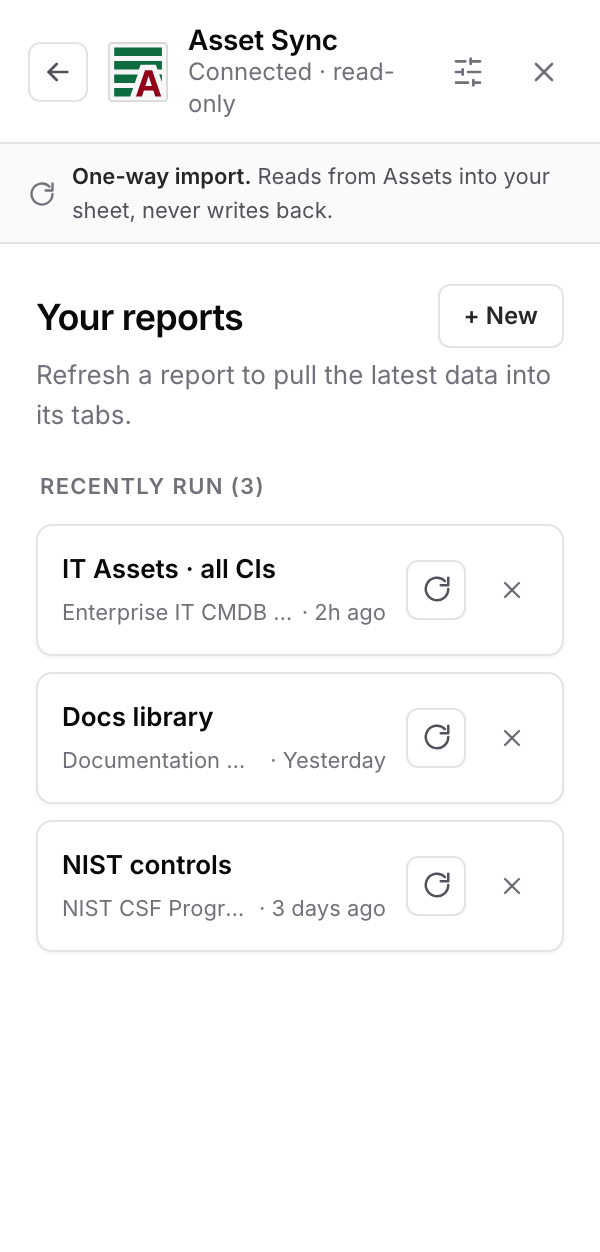
Refresh a report
Every report row carries a refresh button. Select it and the report runs again with the choices you made in the wizard: same schema, same filter, same columns, same destination. Depending on the write mode you chose, the refreshed data replaces the tab or lands underneath the existing rows. The sidebar shows "Refreshing…" while it works and "Refreshed." when the tabs are current.
That is the whole model. Assets moved on, you clicked, the sheet caught up.
Why there is no schedule
Refresh is manual in this version, and we would rather you know that than assume otherwise. A sheet that quietly updates itself is only a good thing when you can rely on it completely, so the honest model is that the sheet is exactly as fresh as your last refresh. Nothing pretends to be live.
Delete a report
The ✕ on a report row removes it from the list. What this deletes is the definition: the tabs it wrote stay in your spreadsheet, untouched, and the sidebar confirms exactly that. So deleting a report is always safe for the data. If you want the rows gone too, delete the tabs in the sheet as you would any other.
Start another
+ New at the top of the list opens the wizard again, blank. Reports are cheap to make, so it is normal to end up with a handful: one per audience, or one per question. Each keeps its own filter, columns, and destination, and each refreshes on its own.
Where to next
That completes Get started. You have the add-on installed, both accounts connected, a report in a sheet, and the refresh habit in place. If you skipped the Overview on the way in, What it does and does not do is worth the two minutes: it is the page that tells you what you can safely promise other people about this tool.
Google Sheets™ is a trademark of Google LLC.