Choose your columns
Choose your columns
Step two of the wizard turns attributes into columns. Every attribute you tick becomes a column in the report, and the object key is always the first column, written as a link to the object in Assets. That is why Key is not in the list: it is already guaranteed its place.
Tick what you want
Each type starts with its first two attributes ticked, so there is always something to run. Tick and untick freely; the footer counts the columns as you go. Select all on a type's header row takes the whole type in one click.
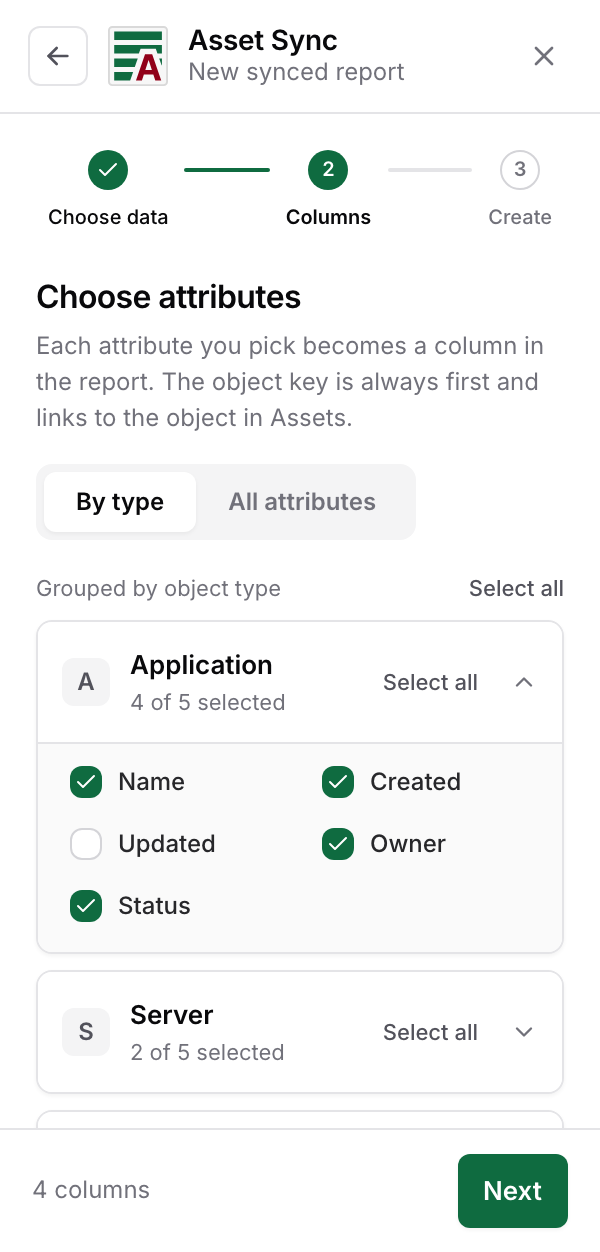
When the report has several types
With more than one object type selected, the step gains a toggle:
- By type lists each type as its own card, so you choose that type's columns on its own terms.
- All attributes flattens everything into one list. Attributes with the same name merge into a single entry, with small badges showing which types own each one. Ticking a merged entry ticks it for every type that has it.
Merging matters for the one-tab layout: a "Status" attribute that exists on four types becomes one Status column, not four. With a single type there is nothing to merge, so the toggle does not appear.
API fields: the raw identifiers, opt in
Below the attributes sits a collapsed API fields card with seven extra columns, all off by default: Object ID, Object type ID, Schema ID, Label, Object URL, Attachments, and Linked tickets. Tick the ones you want and they are appended after your attribute columns. The identifier fields are there for people feeding formulas, lookups, or scripts from the sheet; most reports never need them.
Attachments and Linked tickets deserve a word of caution. They are looked up one object at a time, so a report that includes either runs slower and is capped at 1,000 objects. Each object stays one row: several linked tickets share one cell, linked to a Jira view of those tickets. The card says the same thing when you switch them on, so nobody is surprised mid-run.
This short video shows the API fields and AQL mode in practice.
Where to next
Select Next for the final step: Name it and run it.
Google Sheets™ is a trademark of Google LLC.