Connect your accounts
Connect your accounts
The add-on needs two connections: Google holds your spreadsheet, Atlassian holds your assets. You link each one once, and the sidebar remembers them from then on.
Open the sidebar
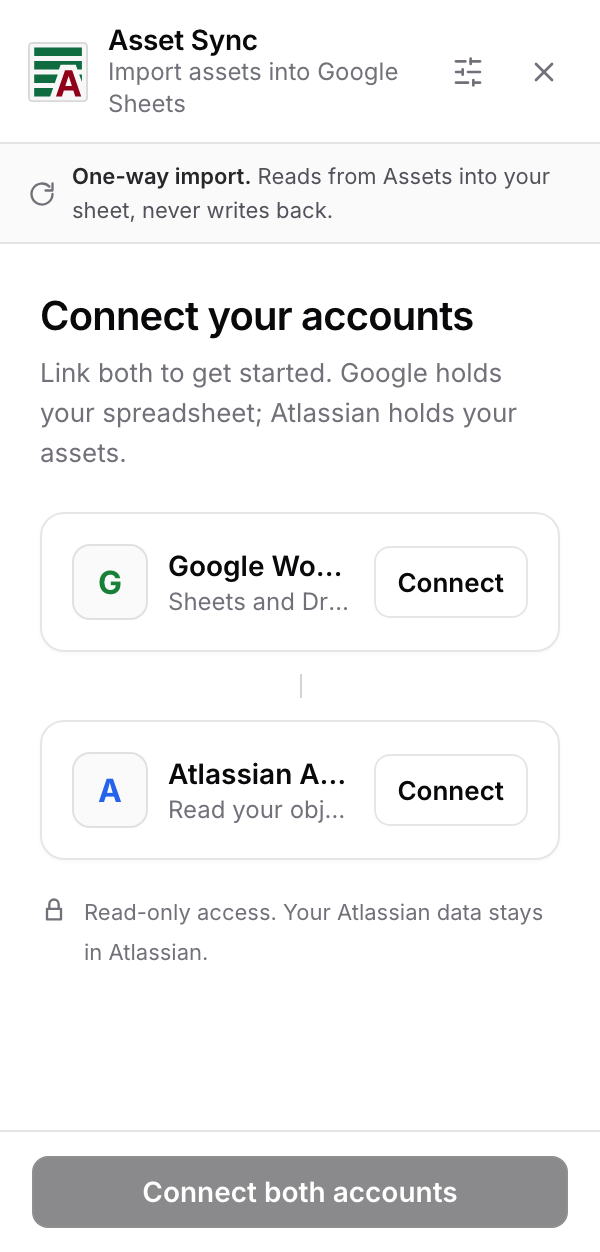
In your spreadsheet, go to Extensions → Asset Sync → Open. The sidebar docks on the right. Notice the banner at the top: One-way import. Reads from Assets into your sheet, never writes back. That banner is on every screen, because it is the promise the whole app is built on.
Link both accounts
- Select Connect on the Google Workspace card. A sign-in window opens; approve access and it closes itself.
- Select Connect on the Atlassian Assets card and do the same with your Atlassian account.
- Watch each card flip to a green Connected badge. The sidebar checks by itself every couple of seconds, so there is nothing to reload.
- When both are green, the button at the bottom changes from Connect both accounts to Continue. Select it.
The Atlassian consent screen will show read scopes, plus one for staying signed in between visits. That is correct: the add-on reads your object schemas and never asks for the right to change them.
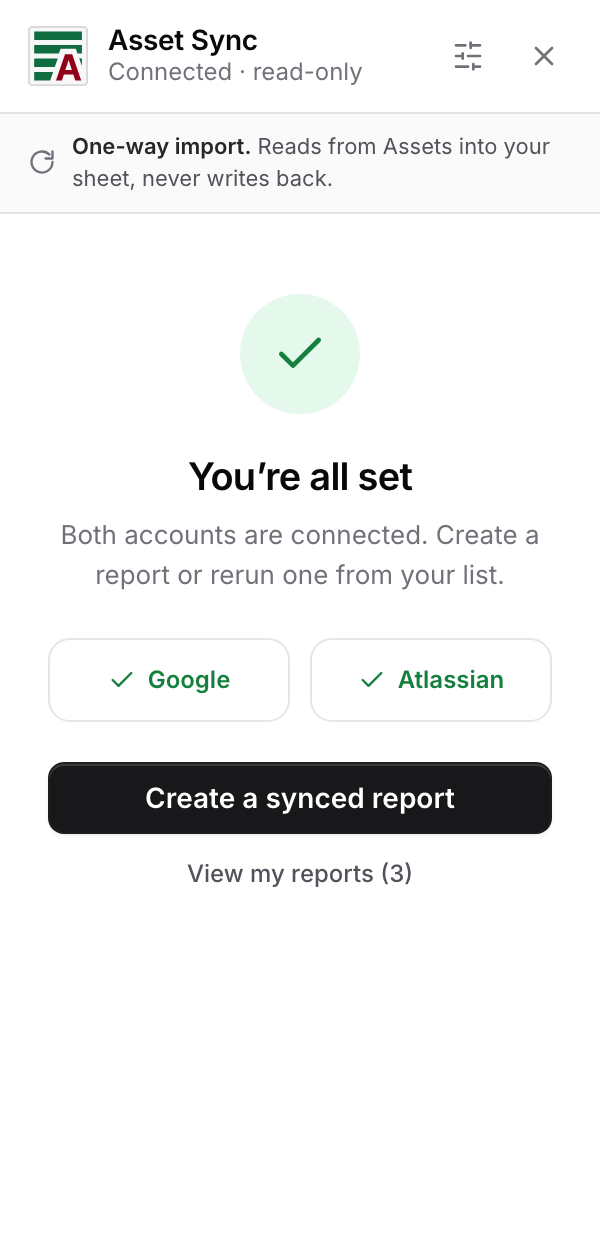
You're all set
Both connections done, you land on the ready screen. From here the sidebar always offers the same two things: create a report, or open your list of existing ones.
If a card does not flip to Connected
- The sign-in opens in a popup. If nothing appeared, your browser probably blocked it; allow popups for Google Sheets™ and select Connect again.
- Finish the sign-in all the way to the confirmation page. The badge flips a moment after the popup closes.
- If you connected the wrong Atlassian account, connect again with the right one. The schemas you see later are always the ones that account can see.
Where to next
Time to build something: Create your first report.
Google Sheets™ and Google Workspace™ are trademarks of Google LLC.