Read your coverage
Read your coverage
The panel helps one agent on one request. The coverage report helps you see the whole knowledge base at once. This is the page most teams come back to.
Run it
- In the project, go to Project settings → Apps → Second Chance.
- Find the Coverage section and select Analyze recent requests.
- Give it a few seconds. It reads your most recent requests, scores each against the knowledge base, and shows the result. The first run sets the baseline; it refreshes at most once every 24 hours.
Read the headline
The big number is the share of your recent requests that already had a strong matching article. Underneath it you will always see the sample size, like "Based on your 20 most recent requests."
Read it this way:
- A higher number means more of what reaches you was already answered in the knowledge base.
- A lower number means more requests are arriving with no article behind them.
Always read the number together with its sample size. On a quiet project, twenty requests is a thin slice, and the report tells you so rather than letting a small sample look like a full audit.
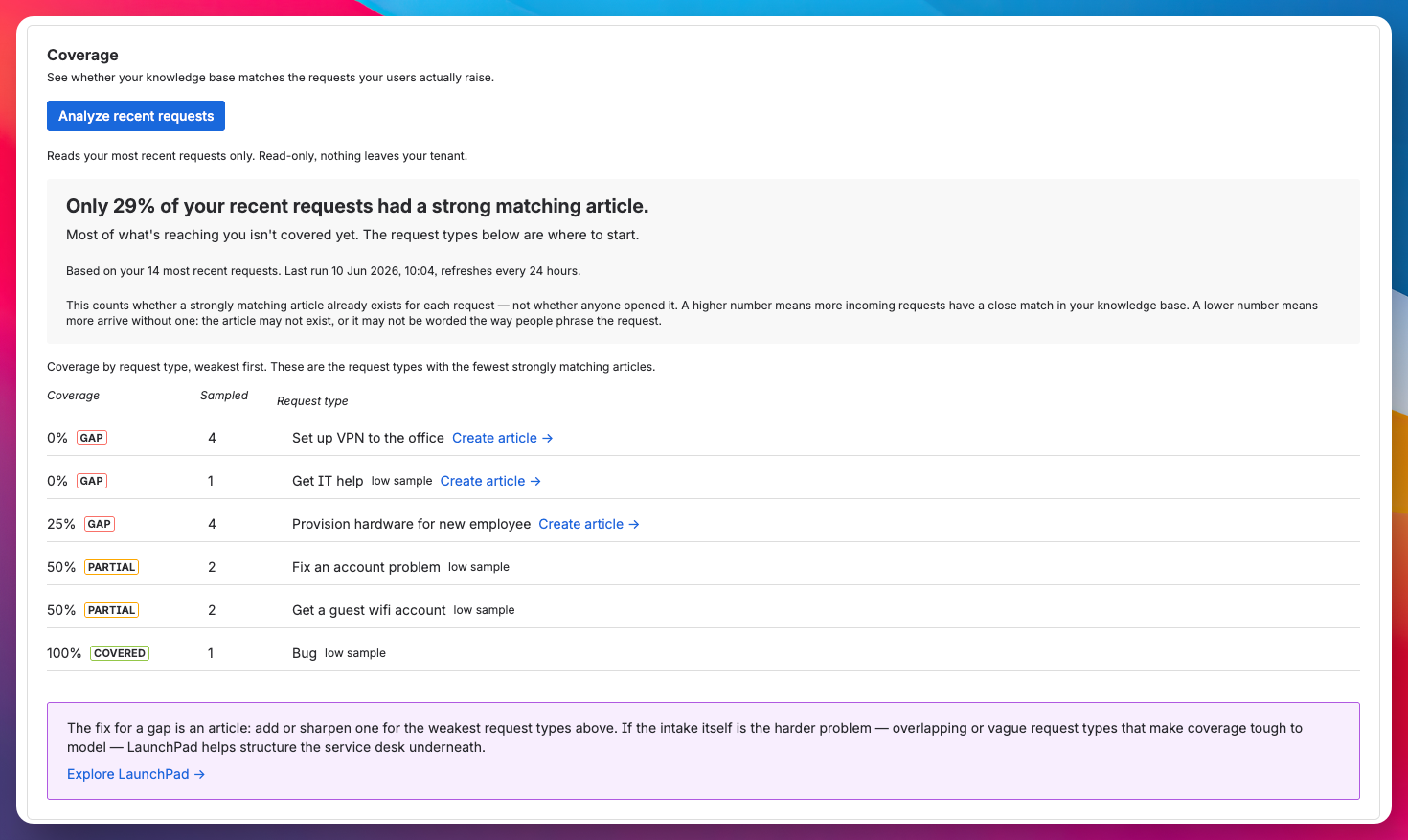
Read the table
Below the headline is a table of request types, weakest coverage first. These are the requests arriving with the least knowledge behind them, and the clearest place to start writing.
Each row shows the coverage for that request type, a Strong / Medium / Weak tag, and how many requests of that type were in the sample. A row built on only one or two requests is marked low sample, so you do not over-read a 0% that is really just "we have not seen many of these lately."
What "0%" actually means
If a request type shows 0%, it means every sampled request of that type arrived with no strong matching article. That is a genuine coverage gap, not a sign that something is broken. It is the report doing its job: pointing you at the knowledge worth writing next.
Where this leads
A knowledge base that is not covering your requests is often a sign that the service structure underneath is not modelled: the request types, the routing, the assets behind them. That is the deeper problem, and it is what LaunchPad for Jira Service Management is built to fix. The coverage report makes the case with your own data, and the call to action below the table points you there when it is relevant.
Where to next
The number is meant to climb, and you can run the report on your other projects the same way. Before you go, two short pages explain what sits behind it: how matches are scored, so the Strong / Medium / Weak tags are never a mystery.