Second Chance
Enable a project
Enable a project
Second Chance is switched on one project at a time. This keeps you in control of where it appears.
Turn it on
- Open the Jira Service Management project you want to use it on.
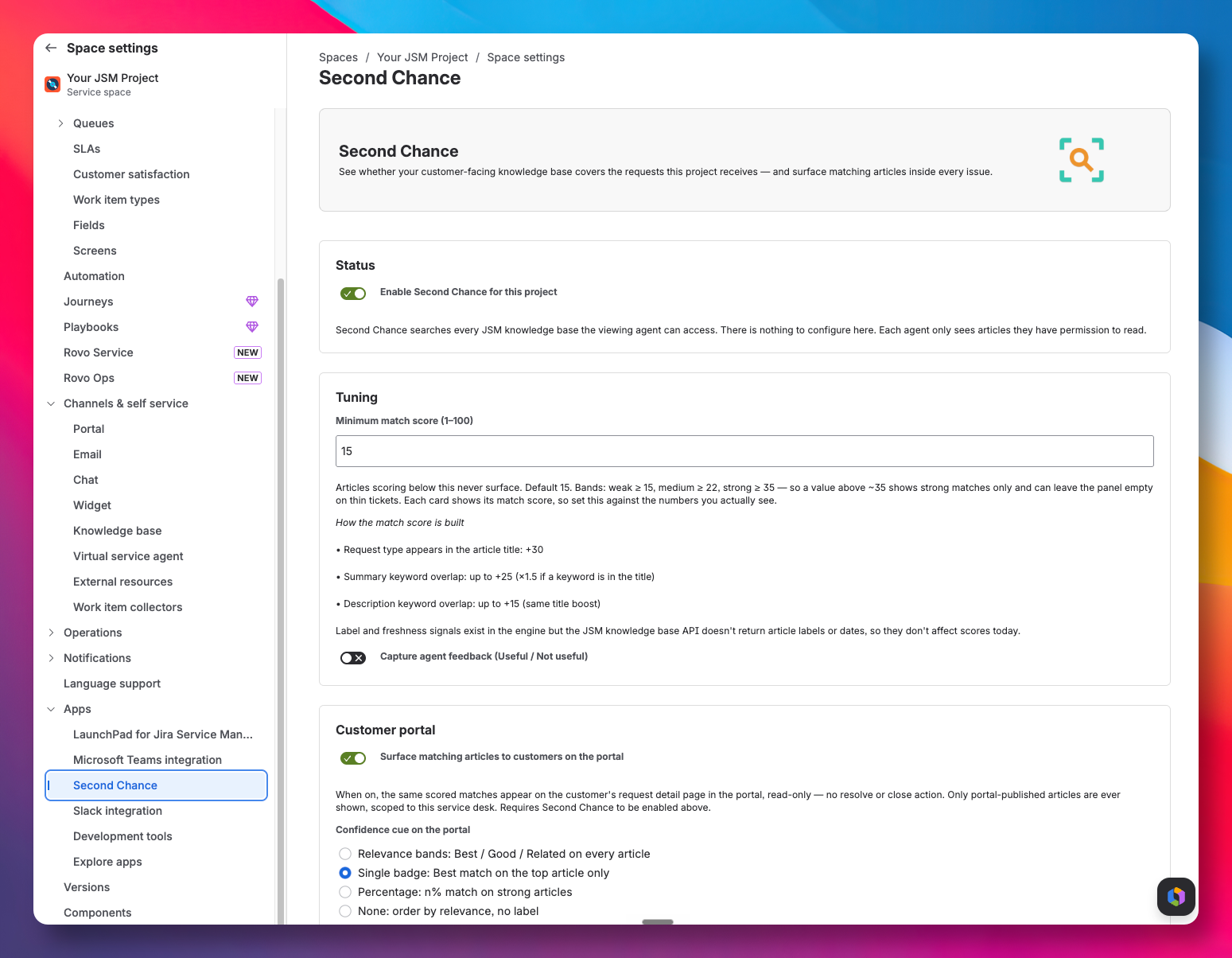
- Go to Project settings → Apps → Second Chance.
- Switch Enable Second Chance for this project on.
- Optionally set a minimum match score if you want to hide weaker matches, and choose whether to capture agent feedback. The defaults are fine to start.
- Save.
There are no spaces to pick and no other setup. The app searches every knowledge base the viewing agent can already read. Showing suggestions to customers on the portal is a separate switch in the same settings, covered on the next page.
Confirm the panel appears
- Open any request in that project.
- Look for the Second Chance panel on the request.
- If the request has enough detail, you will see up to three articles, each with a match strength, a percentage match, and the keywords that matched. Open one, copy its link, or mark whether it helped.
If the panel says nothing matched, that is a real signal, not a fault. This request arrived with no strong article behind it. That is exactly the kind of gap the coverage report is built to total up.
If you do not see the panel
- Confirm you saved the enable toggle in project settings.
- Confirm you are looking at a request in the same project you enabled.
- Give it a moment and refresh the request. The panel stays hidden on projects where the app is switched off, by design.
Where to next
You have it running for agents. Next, decide whether to show the same matches to your customers on the portal: Show suggestions to customers.