First launch explained
First launch explained
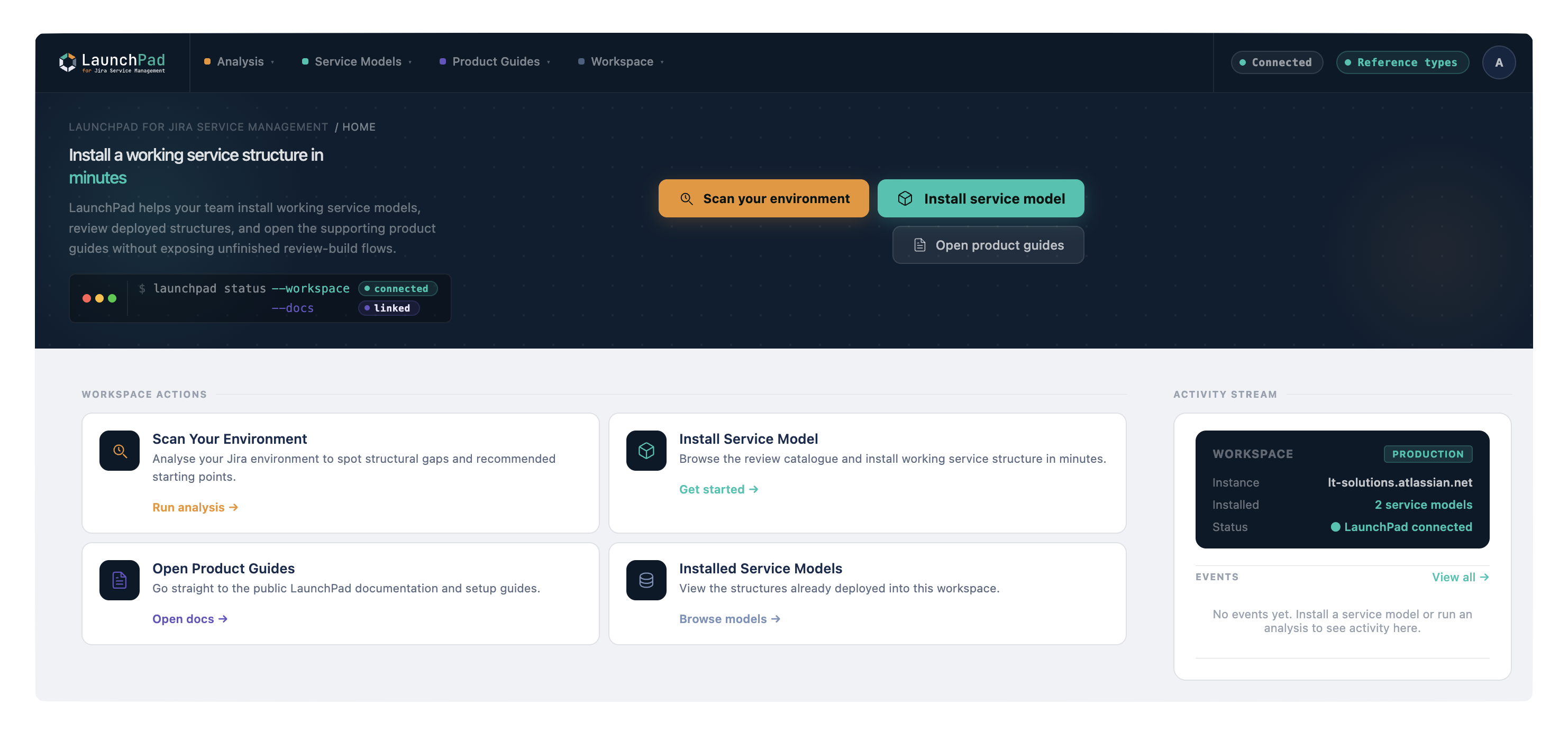
When you open LaunchPad for the first time, the app is not configuring your environment yet. The first question is not "which service model do you want", it is "what do you want to do". The home screen opens with a grid of workspace actions. The two to look at first are Analysis (look at your Jira environment before you commit to anything) and the Service Models actions (install, expand, and browse structure inside Assets).
If you already know exactly which service model you want, you can go straight to installing it. If you are unsure, start with Environment Analysis. That is what it is for.
A first-launch journey
If you are not sure where to begin, this is the path that takes the guesswork out of it:
- Run Environment Analysis. This scans your Jira environment for service model signals and tells you which starting points fit what you already have.
- Review the recommendations. Environment Analysis returns ranked model suggestions with a confidence level, so you can see why each one was put forward.
- Choose a model. Pick one of the recommendations, or browse the full catalogue if you would rather decide for yourself.
- Deploy it. LaunchPad walks you through a review-first install before it writes anything to Assets.
- Review the installed model. Open Installed Service Models to see the structure now sitting in your workspace.
- Run Request Flow Analysis. When you have a service model deployed and connected to a service project, this audits the project's fields, screens, and request types and recommends where free-text fields could become structured object pickers. It is advisory: it flags enrichment opportunities and duplicates, and can create Assets fields, but it does not change your requests for you.
You can skip straight to step 3 if you already know what you want. None of this locks you in: a service model is not frozen at deploy. You can extend it later with Expand a Service Model, which adds object types without modifying or removing what is already there.
What you will see
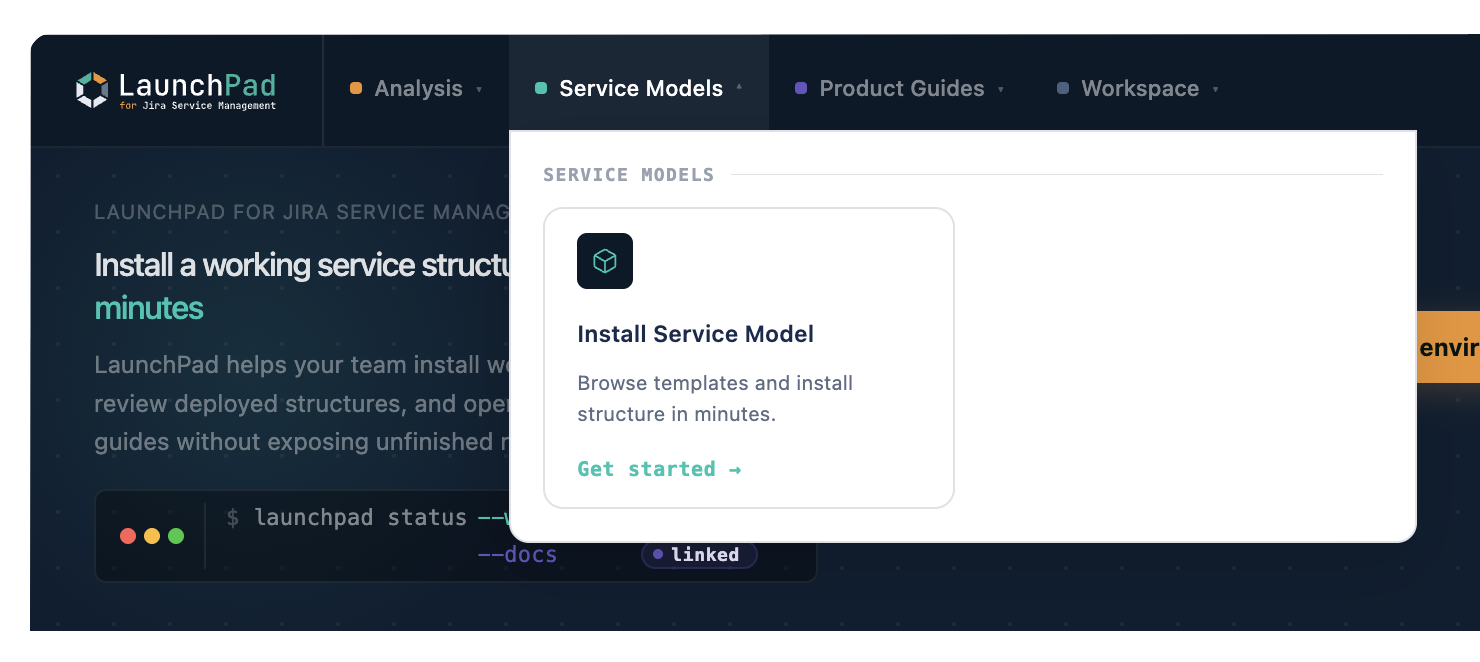
The home screen presents workspace actions side by side rather than a single service model picker. The ones that matter on first launch are:
| If you want to | Open |
|---|---|
| Work out which model fits, when you are not sure | Environment Analysis |
| Install a model you have already settled on | Install Service Model |
| See what is already deployed in this workspace | Installed Service Models |
| Add missing object types to a model you already have | Expand a Service Model |
If you are unsure where to start, run Environment Analysis first. It reads your Jira environment and recommends the models that fit, so you are choosing from evidence rather than guessing. You can browse the full set of options in the Service model reference.
Still want to decide the model yourself? Which schema should I choose? walks through the decision in detail.
How the models fit together
Most of the catalogue is built around one shared model: Core. Core holds the master data that everything else points at: people, teams, locations, vendors, applications, and business services. Almost every other model extends Core and references its types rather than redefining them, so a Person or an Application is described once and reused everywhere.
This is why Core is a safe first install. If you are not sure how much structure you need, Core gives you the shared hub that the rest of the catalogue is designed to attach to.
What happens when you deploy
Deployment is review-first. When you choose a service model, LaunchPad takes you through four steps: Choose, Review, Install, Complete. Before anything is written to Assets, the Review step works out which references can link to object types you already have. You decide, per reference, whether to link to an existing schema, create the object type here, or keep it as plain text.
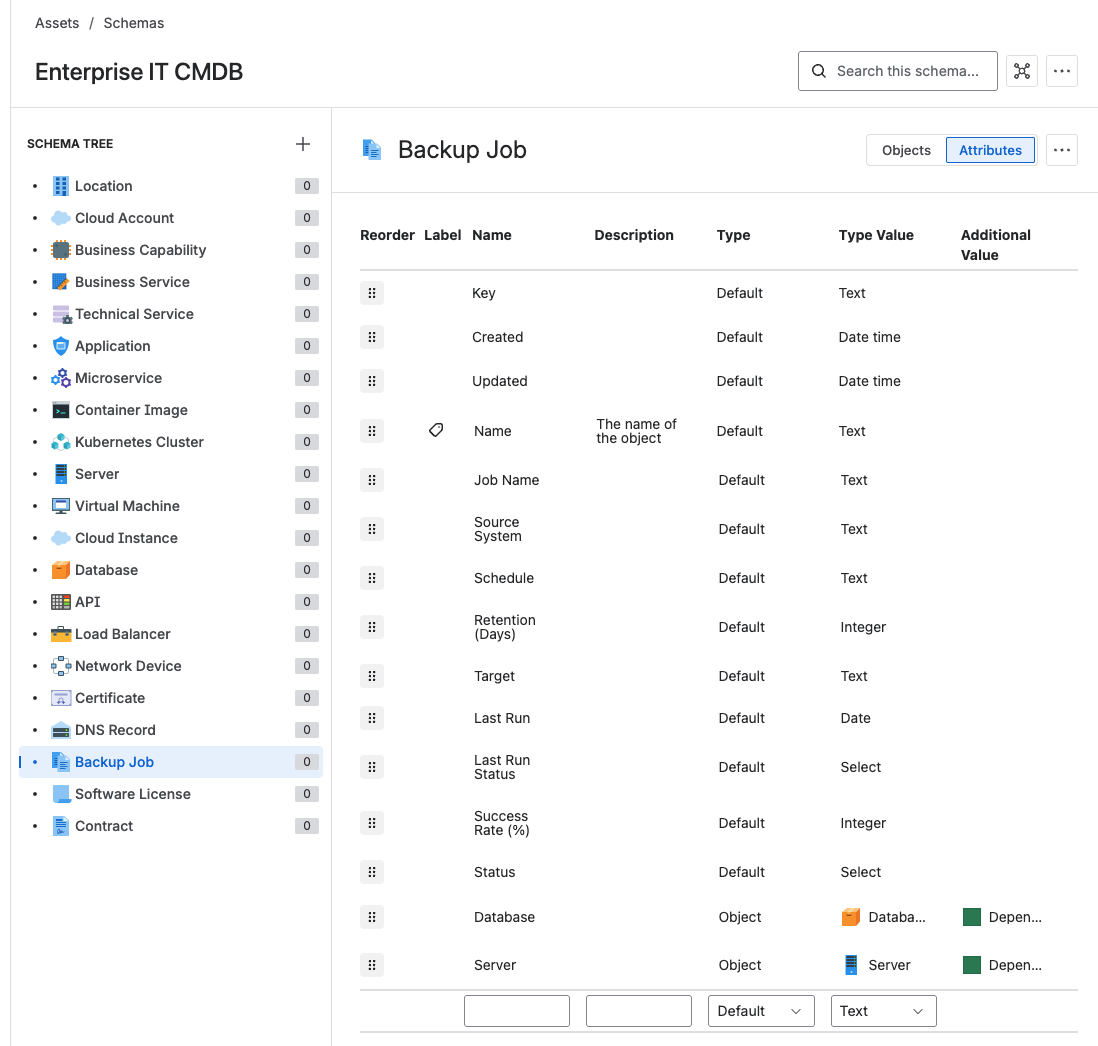
Once you confirm, LaunchPad creates the data structure inside Assets: object types, relationships, attributes, and references. This typically completes in a minute or two, depending on the size of the model.
Nothing is deleted. No existing data is modified. No users are affected. The structure is created alongside whatever already exists in your Assets environment, and where you chose to link, it connects to schemas you already have rather than duplicating them.
After deployment, your Assets section will contain a fully structured set of object types ready to be populated with your organisation's data.
What to do after deploying
Do not start customising the service model immediately. The next step is to connect it to a service space so you can see it working with real requests. That is what makes the difference between a configured tool and a functioning service desk.