After installation: what happens
After installation: what happens
The installation is done. So what is actually in your environment now, and what does it mean for how your team works?
What LaunchPad just built
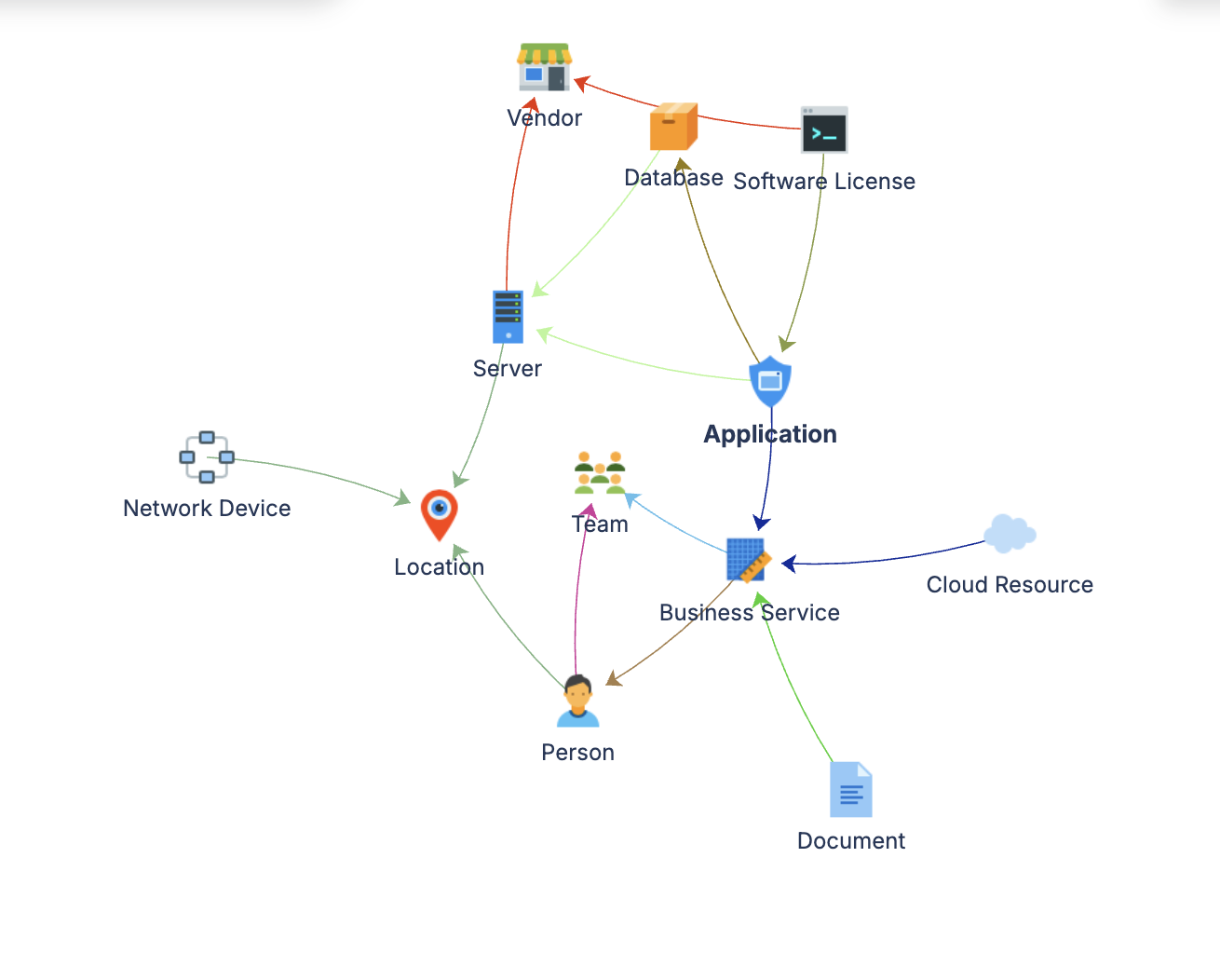
Depending on the model you installed, your Assets environment now contains a structured schema with some combination of:
-
Service objects: the services your team manages and supports
-
Application objects: the applications that underpin those services
-
Infrastructure objects: the systems those applications run on
-
Vendor objects: third parties providing components or services
-
Relationships connecting all of the above in a way that reflects how they actually depend on each other
-
Ownership fields that allow you to assign accountability across your service estate
None of this is placeholder content. It is a working structure, already in place and already connected.
Go and look at it
Before doing anything else, open it.
Assets → Schemas (from the Jira sidebar)
You will see your new schema listed. Open it. Click through the object types. Follow some relationships. Get a feel for the shape of what is there.
This matters because the next few steps, assigning ownership, connecting your request types, validating with real scenarios, all make more sense once you have seen the structure firsthand.
If you can see connected objects with relationships between them, installation has succeeded.
What is now possible
With the schema in place, your Jira Service Management environment can now support:
Service ownership: every service has a home. You can assign owners, define accountability, and use that structure for routing and escalation.
Impact analysis: when something breaks, you can follow relationships from the affected CI to understand what is impacted upstream and downstream. No more guessing.
Change risk awareness: before making a change, you can see what depends on the component you are touching. The information exists; now it is structured.
Routing and reporting: with ownership and relationships defined, you have the foundation to route requests intelligently and report against your service estate.
Installation is the start of the work, not the end of it. With a model in place, the rest of LaunchPad opens up:
Environment Analysis: run a scan of your Jira environment ("Scan your environment" on the home screen) to spot structural gaps and see which service models are worth adding next.
Request Flow Analysis: point LaunchPad at a single service desk and it audits the request types, fields, and screens, then shows where free-text or choice fields could become structured Assets object pickers.
Expand a service model: match a deployed service model against the service model library and add the object types it is missing, without re-running the whole install.
Import and export: bring object data into Assets from a workbook, or export a workbook of what is already there. Both run in the background, so you can close the tab while they finish.
What is not automatic
LaunchPad builds the structure. It does not connect your existing tickets to it, populate historical data, or modify your existing workflows. Those steps involve your team's decisions about how to work, and they are covered in the sections that follow.
Think of what you have now as a well-designed empty building. The rooms are laid out properly, the wiring is in, the labels are on the doors. Your team decides how to move in.
Three things worth doing before anything else
1. Assign ownership to key services. Open your most critical services and put an owner against them. This is the single action that makes the most other things possible: routing, escalation, accountability.
2. Review a few relationships. Pick a service and trace its dependencies. What does it depend on? What depends on it? If that picture makes sense for your environment, you are in good shape. If something looks off, it is worth adjusting now before you build on top of it.
3. Test with a real scenario. Raise an actual incident or request, identify the affected service in Assets, and check whether ownership and relationships give you useful information. If they do, your model is operational.
Recommended next steps
Once the model checks out, here is a sensible order to work through.
1. Populate data. An empty model proves the shape; real objects make it useful. Use the import workbook to bring people, applications, services, and infrastructure into Assets from a spreadsheet. You can export a workbook of what is already there as a starting point, fill it in, and import it back.
2. Run Request Flow Analysis. Pick a service desk and let LaunchPad audit its request types, fields, and screens. It reports where the requests your team handles every day could be tied to the structure you just installed.
3. Review enrichment opportunities. Request Flow Analysis groups its findings into what is ready to configure, what would benefit from enrichment, and what needs a template. Work through the enrichment opportunities to turn generic free-text or choice fields into Assets object pickers.
4. Extend the model if required. If the scan shows gaps, use "Expand a service model" to add object types from the service model library into your existing service model. It only creates what is missing, so it will not touch the types and relationships you already have.