Troubleshooting installation
Troubleshooting installation
Most problems after installation or first deployment fall into a handful of categories. This page covers each one with symptoms, the most likely cause, and the fix. The first five sections deal with schemas, fields, and permissions. The later sections cover the scanners (Request Flow Analysis and Environment Analysis) and the Object Import Workbook. If your issue is not listed here, contact support through the Customer Documentation Access page.
Objects not appearing in requests
Symptoms: The Assets field is visible on the request form but shows no selectable objects.
Most common cause: The field is not filtered to the correct object type in the schema.
Fix: Edit the field configuration in your request type settings and ensure both a schema and an object type are selected (for example, Application). Without both of these set, the field has nothing to display.
| Other possible cause | Fix |
|---|---|
| No objects exist in the object type | Create at least one test object in Assets |
| Agent permissions do not include Assets access | Grant the relevant agents Assets permissions |
| Wrong field added to the request type | Remove the field and re-add as an Assets object field |
Permissions issues
Symptoms: Users cannot see objects, cannot open object details from a ticket, or get permission errors when navigating to Assets. A common variant is that an Assets field added to a request form does not appear at all for the customer in the portal, even though the schema looks correctly configured and changes to schema roles make no difference.
Typical reason: Assets permissions are separate from Jira space permissions. Having access to a Jira space does not automatically grant visibility into the Assets schema.
Fix: Open the schema in Assets, go to Schema configuration → Roles and add the appropriate groups. Typically this means assigning the Object viewer role to your service desk agents group (so they can see objects) and the User or Manager role to administrators or data owners who need to maintain records.
The Roles tab in the schema settings has four categories: Object schema managers (full control over the schema and its data), Object schema developers (can modify schema structure and objects), Object schema users (can create and edit objects), and Object viewers (read-only access via Confluence Assets macro tables). For the full description of each role and the permissions it grants, see Atlassian's documentation on Assets roles.
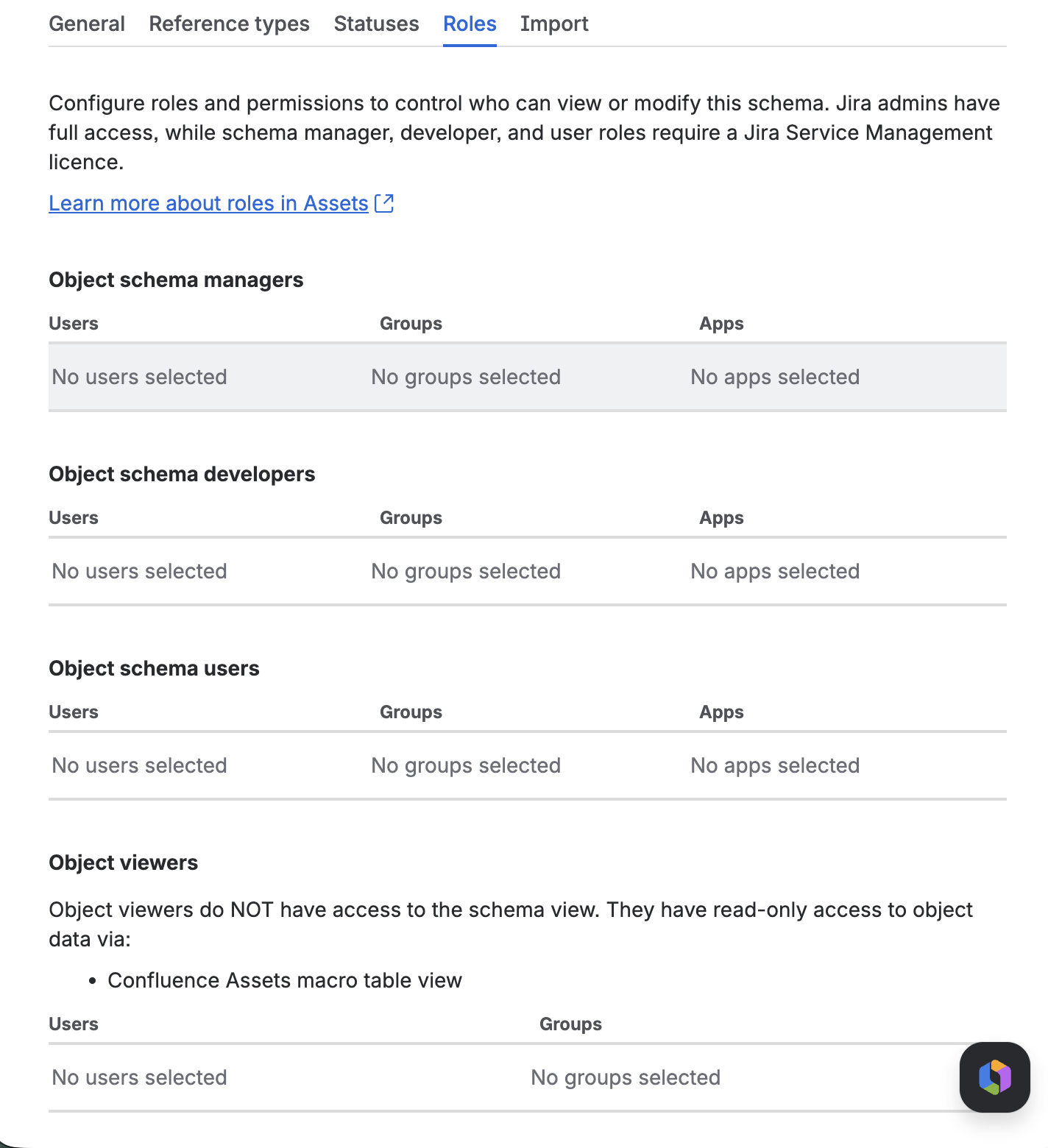
This is the single most common support issue after a fresh deployment. If your agents can raise tickets but cannot see the linked Assets data, permissions are almost certainly the cause.
Why an Assets field can disappear entirely
If the field is not visible at all on the request form (absent rather than empty), the cause is almost always a misalignment between three access layers, not a schema misconfiguration. All three must align, and if any one is missing the field will not render:
- Schema role assignments. Who is assigned to a role on the Assets schema.
- Group membership. Whether the affected user belongs to one of those groups.
- Customer portal access. Whether that group has permission to raise requests in the Jira Service Management project.
Work through each layer in order.
Validate schema roles. Open the Assets schema, navigate to Schema settings → Roles, and confirm that at least one role is populated with a group rather than just individual users. A schema with empty role assignments cannot be accessed by anyone except the site administrator.
Validate group membership. Identify the group assigned to the schema role, then confirm the affected user is a member. If not, either add the user to that group or reassign the schema role to a group the user already belongs to.
Validate customer portal access. Open the service project, go to Project settings → Customer permissions, and confirm the same group has access to the project and can raise requests. Being in a schema role is not enough on its own: the user must also be permitted to use the portal.
After adjusting any of the above, reopen the request form as the affected user and confirm the field is now visible.
Quick diagnostic checklist:
- Schema has at least one role configured
- Role is assigned to a group, not left empty
- User is a member of that group
- Group has access to the Jira Service Management project
- Group has customer portal access
If any one fails, the field will not appear. To prevent this on future deployments, create standardised groups for service ownership and request routing, and align Assets schema roles with those groups at install time.
Automation not triggering
Symptoms: Automation rules that reference Assets fields do not fire, or fire but produce no result.
Common causes: The rule actor (the account running the automation) does not have permission to view objects, the Assets field is not included on the work item screen, or the field is not populated at the point the rule executes.
Fix: First, check that the rule actor has Assets view permissions. Second, confirm the Assets field is present on the work item screen (not just the request form). Third, if the rule triggers on work item creation, the object field may not yet be set when the rule runs. Either add a small delay condition or switch the trigger to "Field value changed" so it fires after the field is populated.
Most automation failures occur because the rule runs before the Assets field has a value. A two-second delay or a field-change trigger resolves this in almost every case.
Assets field empty
Symptoms: The Assets field is correctly configured but no objects appear in the dropdown.
Cause: The object schema is deployed but contains no data. LaunchPad creates the structure (object types, attributes, relationships) but does not populate it with records. An empty object type will show an empty field.
Fix: Create at least one object in the relevant object type. Go to Assets → Object schema → Object type → Create object and add a test record. The field will then become selectable in requests.
After deploying a service model, create three to five sample objects in your most-used object types (for example, Application, Service, or Server). This gives you enough data to verify the integration works before importing real records.
Performance issues
Symptoms: Slow loading when opening Assets, browsing objects, or selecting values in Assets fields on request forms.
| Cause | What to do |
|---|---|
| Too many attributes on a single object type | Remove or hide unused attributes to reduce the data loaded per object |
| Long reference chains | Reduce deeply nested relationships where possible |
| Overly complex field filters | Simplify the AQL filter on the Assets field to return fewer results |
LaunchPad schemas are optimised for performance out of the box. Performance problems usually appear after heavy customisation, particularly when many additional attributes or multi-level reference chains are added. If you have not customised the schema and are experiencing slowness, contact support.
Service model deployment failed partway through
Symptoms: A service model deployment stopped before it finished, leaving some object types created and others missing.
What happened: LaunchPad creates a schema forward only. It does not delete or roll back the object types it has already created when a later step fails, so a failed run leaves a partial schema in place rather than cleaning up after itself.
Fix: Re-run the same deployment. The deploy is idempotent: it reuses any object type that already exists under the same name instead of creating a second one, and it picks up from where it stopped. Running it again over a partial schema is safe and will not produce duplicates.
Do not delete the partial schema before re-running unless support tells you to. A clean re-run reuses what is already there. Deleting first throws that work away and starts from nothing.
Request Flow Analysis issues
Request Flow Analysis scans a service desk and compares its custom fields against the Assets schemas you have deployed, so it can highlight free-text or choice fields that could become structured object pickers. It needs an active licence and Jira administrator rights, and creating a field is rate limited per user.
Symptoms: Creating a field from a recommendation fails or behaves unexpectedly.
| Cause | Fix |
|---|---|
| A field with that name already exists and is not an Assets field | Choose a different name. LaunchPad will not repurpose a non-Assets field, so it stops rather than create a clash. |
| A field with that name already exists and is an Assets field | LaunchPad reuses it and tells you so in a notice. No action needed. If you wanted a separate field, create it with a different name. |
| Too many field creation requests in a short window | Wait a few minutes and try again. Field creation is rate limited per user to protect the Jira API. |
| The feature is locked | Request Flow Analysis needs an active licence. Confirm your licence state, or use Environment Analysis, which is free, to plan first. |
The field was created but does not show on the request form. Creation and screen placement are separate steps. If LaunchPad could not resolve or update the create screen, it still creates the field and reports the screen step as a warning. Add the field to the create screen manually under Project settings → Request types (or the relevant screen scheme), then check the form again.
Object selection is empty after creation. The new field is an Assets object picker, but the AQL filter that decides which objects it offers cannot be set through the API. LaunchPad gives you a configuration link to the field. Open it, set the object type and AQL filter, then save. Until the filter is set, the field has nothing to display.
No enrichment recommendations appear. The scan only suggests an object picker where it finds a deployed Assets schema that matches the field. Fields whose match needs a schema you have not deployed yet are listed under Needs template, not under enrichment. Deploy the matching service model first, then re-scan.
Environment Analysis issues
Environment Analysis is the organisation-wide scanner. It reads your request types and custom fields across the site and suggests which service models fit the signals it finds. It needs Jira administrator rights and is free in every licence state, so you can use it to plan before you buy.
Symptoms: A scan returns nothing useful, or will not run.
| Cause | Fix |
|---|---|
| No recommendations returned | The scan found too few matching signals to suggest a service model. This is a real result, not a fault: a small or generic Jira site may simply not show a strong fit yet. Add the request types and fields your team actually uses, then re-scan. |
| Recommendations all show low confidence | Confidence is driven by how many strong signals the scan finds. A handful of weak matches, or a guard condition that was not met, caps a recommendation at low. Treat these as worth considering rather than clear fits, and re-scan after your Jira data grows. |
| A stronger service model suppressed one you expected | When two service models compete, the weaker one is marked suppressed and moved to a separate list. Open the suppressed section to see it and why the stronger one won. |
| The scan will not start | Environment Analysis needs Jira administrator rights. Confirm the account running the scan is a Jira admin. |
You do not need to supply an API token for either scanner. LaunchPad is a Forge app and authenticates as the app, so there is nothing to paste or configure.
Object Import Workbook issues
The Object Import Workbook lets you export a schema's objects to a branded spreadsheet, edit or add rows, and import them back. Both directions need an active licence and Jira administrator rights. Every upload is validated before anything is written, and the review screen shows what the import will do.
Symptoms: Validation reports errors, or the import does not behave as expected.
Schema mismatch. If the workbook's schema key does not match any schema in this workspace, validation blocks the import and tells you no schema with that key exists. Deploy the schema first, or regenerate the workbook from the schema you mean to import into. A schema whose shape has drifted since the workbook was generated raises a warning rather than a block: you can proceed, but check that the columns still line up.
Validation errors on rows. Validation checks each row against the live schema before import. Common errors:
| Error | What it means | Fix |
|---|---|---|
| Required field empty | A new row left a required column blank | Fill the required value. On an update row (one with an Object Key) a blank means "leave as is", so this is allowed there. |
| Email format not recognised | An email column holds something that is not a valid email | Correct the value. |
| Please use Yes or No | A true/false column holds an unrecognised value | Use Yes or No. |
| Date not recognised | A date does not parse | Use yyyy-mm-dd, or a textual month like 31-Dec-2026. For slash-separated dates LaunchPad reads day before month. |
| Value not in the allowed list | A choice column holds a value outside the schema's options | Use one of the listed values. Case and surrounding spaces are tolerated. |
| Column will be ignored | A column header does not match any attribute | Remove or rename the column. Unknown columns are skipped, not imported. |
| Object type no longer exists | A sheet maps to an object type that has been removed from the schema | Regenerate the workbook from the current schema. |
The error report is capped per sheet, so a workbook with many problems shows the first batch with a note that more were truncated. Fix what is shown, re-upload, and the next pass surfaces the rest.
Import errors after validation passed. Validation never enforces rules stricter than Assets itself, so a row can still be rejected by Assets at write time (for example a value that exceeds a length limit Assets enforces but LaunchPad does not pre-check). These are reported per row on the activity screen, with the row number and reason, and the list is capped the same way. Correct those rows and re-import.
Re-importing creates new objects for any row that does not carry an Object Key. The import does not check whether a matching object already exists, so uploading the same workbook of new rows twice creates the records twice. To re-import safely, export first so each row has its Object Key, then edit and upload that file: rows with a key update the existing object instead of creating a second one.